 DriveHub
SUPPORT / WHAT'S NEW
See what's new after an update
After an update, DriveHub shows what changed in that version once, on the Trips tab and at the top of Settings.
Updated
← All support answers01 / 04
Where the notes appear
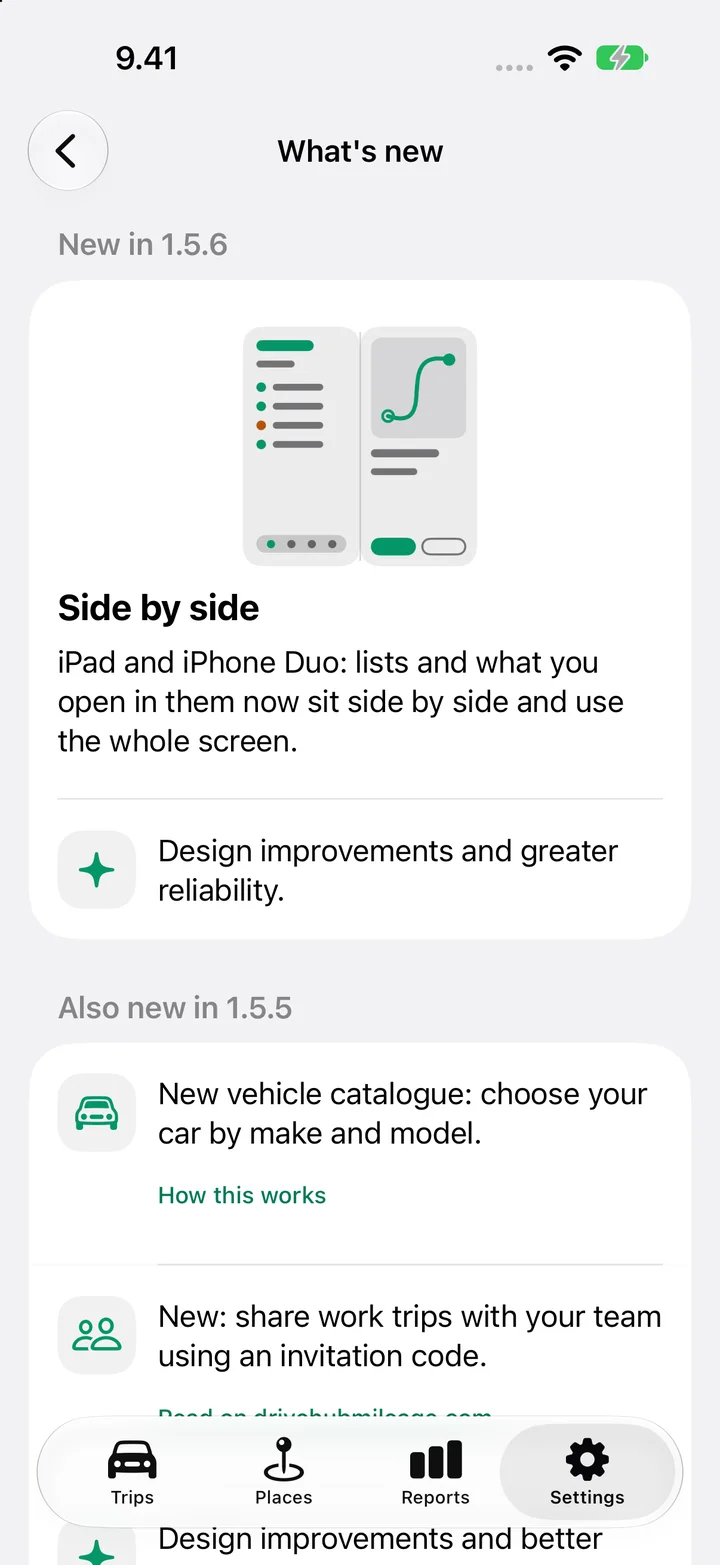
After an update, a What's new row with the version number appears under Needs you on the Trips tab and at the top of Settings. Both open the same notes, newest first. If you skipped an update, an earlier version may appear on the next page.
Some versions come with a short illustration of the change. Lines that have a guide behind them carry How this works, which opens the guide inside the app.
The notes are never opened for you, and they do not appear while a drive is recording in place of the live trip.
- Open Trips → Needs you → What's new, or open Settings and tap What's new at the top.
- Read each page. Tap Next to move on and Got it on the last page.
02 / 04
When the notes go away
Once you have opened the notes, the Trips and Settings rows disappear until the next update. If you never open them, they go away by themselves 14 days after they first appeared.
A new installation shows no notes: there is nothing to compare it with. The notes are kept on each iPhone separately and are not synced.
To read the latest notes again, search Settings for What's new.
03 / 04
Open the step-by-step guides
All guides on the website at the top of Settings opens these guides on the DriveHub website in Safari, in the language the app uses. Help & about, further down in Settings, keeps the in-app search, support and legal links.
- Open Settings.
- Tap All guides on the website.
04 / 04
What the notes need from the internet
The notes are downloaded from drivehubmileage.com after an update, as a short public file signed by DriveHub, in the same way as the mileage-rate list. Nothing about you or your trips is sent. A file whose signature does not check out is ignored, and without a connection nothing is shown until the app can try again.