DriveHub
SUPPORT / GETTING STARTED
From install to your first drive
A few checks before you set off, then one review after you arrive.
← All support answers01 / 04
Let the phone notice a drive
DriveHub records in the background, including when the app is closed. It needs Always location access, Precise Location and Motion & Fitness to detect drives and check for gaps. Notifications help you notice a missed drive; the optional calendar is only for suggesting a trip type.
- Finish the in-app setup prompts. If you skipped one, open Settings → Tracking & detection → Tracking & permissions.
- Follow any item marked as needing attention into iOS Settings and allow it there.
- Return to DriveHub and check that Tracking & permissions says recording is ready.
02 / 04
Add the car you drive
A vehicle makes the log easier to review and lets a report describe the right car. You can add another later or correct a trip's vehicle in its details.
- Open Settings → Vehicles and add your car.
- Choose your country and vehicle details when DriveHub asks; the rate and report fields depend on them.
- If you drive more than one car, check the vehicle chip before starting a trip by hand.
03 / 04
Drive, then open Trips
With Automatic Detection on, you do not need to start a timer. You can also tap Start on the Trips tab before setting off. Working hours decide how a trip is filed; they do not switch recording on or off.
- Take a normal drive with your iPhone with you.
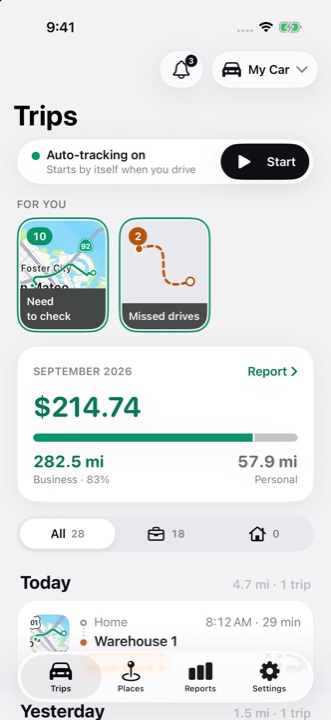
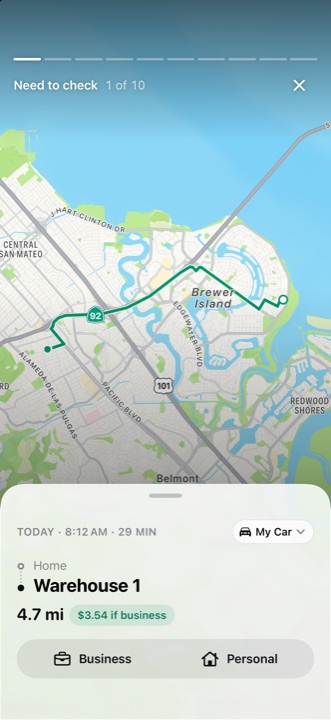
- Open Trips. The new drive appears in the dated list; tap it to check route, distance and vehicle.
- If DriveHub asks for a type under For you → Need to check, choose Business or Personal. Add a purpose for a business trip if your logbook needs one.
04 / 04
If the trip did not appear
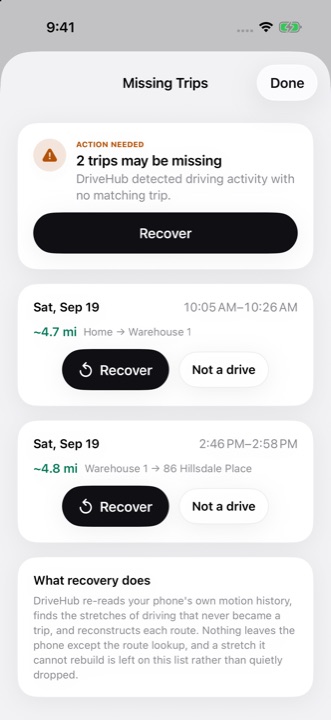
Open For you → Missed drives and tap Recover if your iPhone logged the movement. Recovery rebuilds a likely route with Apple Maps and needs a connection. If the phone was off, empty or in Airplane Mode, add the drive at the end of the Trips list with Add a past trip.
- Check Settings → Tracking & detection → Tracking & permissions for anything turned off.
- Check the Missed drives story and recover a matching drive, if one is listed.
- If there is no recoverable drive, use Trips → Add a past trip. Repeated gaps are worth reporting to support.