 DriveHub
SUPPORT / REPORTS
Make a report you can check
The report starts with the trips you have already recorded. Choose its scope, fix anything flagged and inspect it before sharing.
← All support answers01 / 04
Choose what the report covers
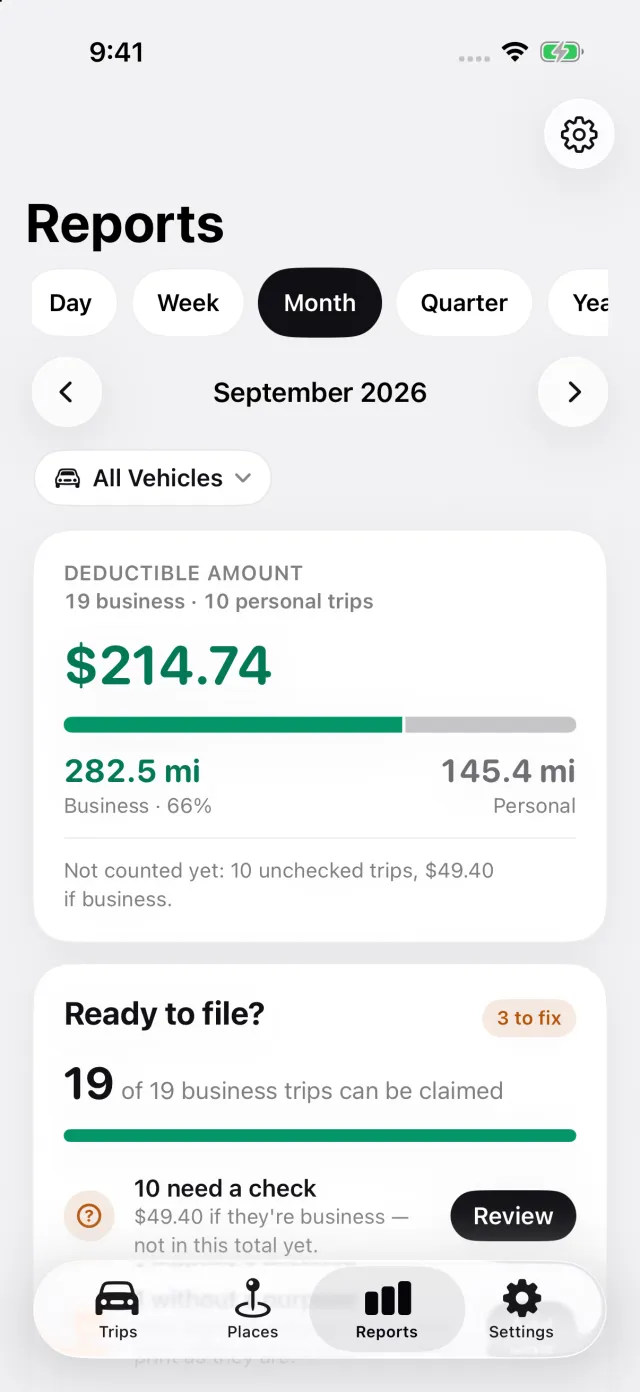
Open Reports and choose the month, quarter, year or custom range you need. Move to the right period with the date controls. If you have multiple vehicles, use the vehicle filter to make a report for one car or all of them.
- Open Reports and choose the period at the top.
- Check the date range and the vehicle filter before reading the totals.
- If a trip is missing from the total, look for it on Trips and check its date, type and vehicle.
02 / 04
Work through Ready to file?
The Ready to file? card points out trips and fields that need attention for the selected period. Its actions take you to the affected trips or settings. Check business and personal types yourself before relying on a report.
- Open each action in Ready to file? and complete the relevant trip or vehicle detail.
- Check the country and rate under Settings → Rate & units; country rules and rate dates can change.
- Use Report settings if you need to change the details printed on the document.
03 / 04
Preview, then share the file
Export requires DriveHub Pro. Your trips, review and on-screen totals remain available without Pro. A report with no trips in its selected period cannot be exported.
- Tap Export report on Reports. DriveHub first opens a PDF preview.
- Read the totals and a few trip rows in the preview.
- Tap Share and choose PDF, Excel (XLSX) or CSV. Then use the iPhone share sheet to save or send the file. PDF is the document you previewed; Excel and CSV contain the same trips as tables.
04 / 04
If you need a different report
Change the period or vehicle filter and export again. If you correct a trip after exporting, make a new file: a previously shared PDF or spreadsheet does not update itself. The official figures on the country pages explain the source behind built-in rates, but you should confirm what applies to your own filing.