 DriveHub
SUPPORT / HOW TO
Answer the trips waiting under To check
The Trips tab starts with the trips that still wait for an answer. You answer each one on its card, without opening it. The rest of what needs you is one list, and the log follows below.
Updated
← All support answers01 / 04
Answer a trip where it is listed
While a trip waits for an answer, the Trips tab opens with To check and the number of trips waiting. A line under the heading gives their total distance and, where DriveHub can price them in one currency, what they are worth if business.
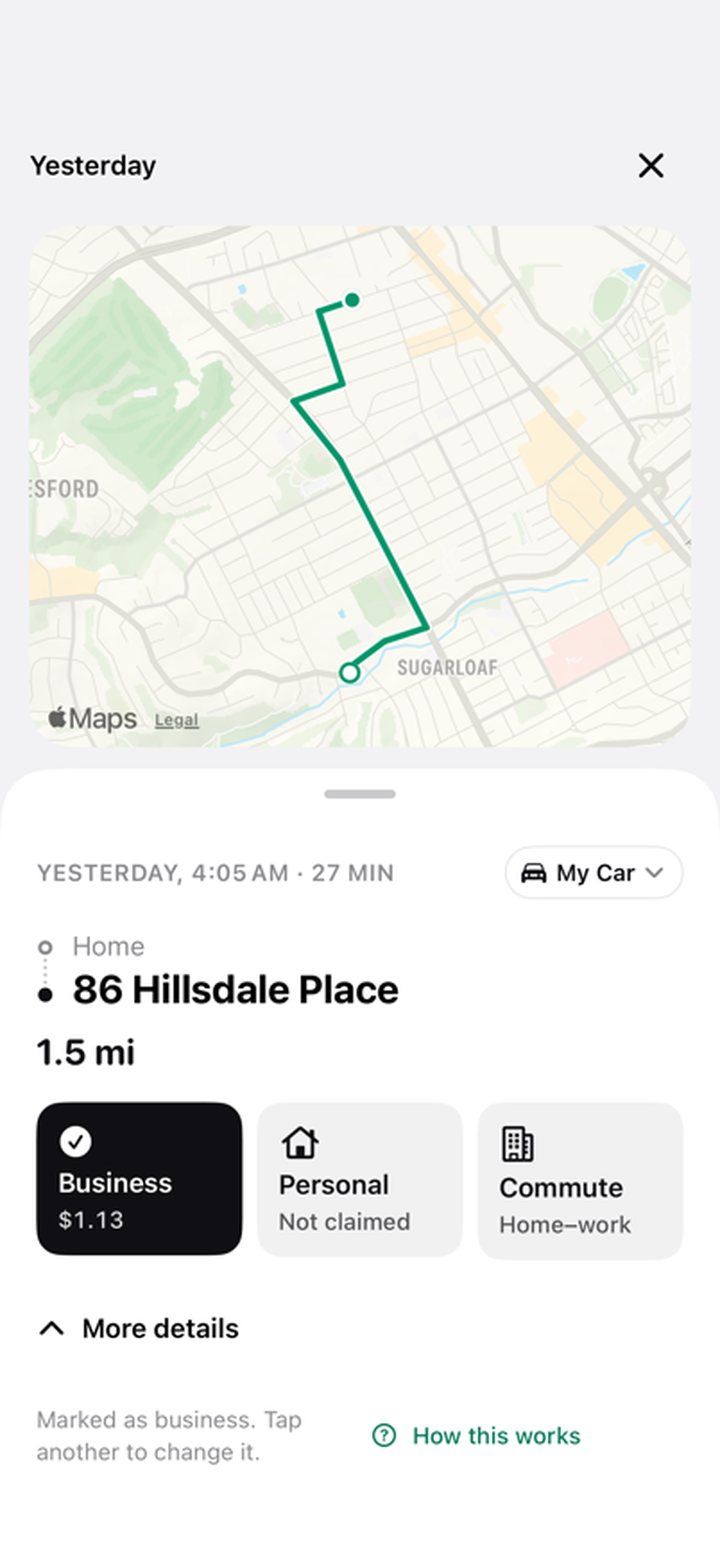
Each trip is a card: the day and time, the distance, where the drive ended and where it started. Tap Business, Personal or Commute on the card and the answer is saved. The card leaves To check, and the trip stays in the Log below with its answer.
The tab shows two cards at a time. When more trips wait, Show all and Review in turn both open them one after another.
If DriveHub is not sure which car made the drive, the card carries a chip with the car's name and a question mark. Tap it to choose the car.
- Open Trips. To check is at the top while a trip waits for an answer.
- Tap Business, Personal or Commute on a card.
- To see the route or add details first, tap the upper part of the card. It opens the trip.
- With more than two trips waiting, tap Review in turn or Show all and answer them one by one.
02 / 04
Business waits for a purpose where your logbook requires one
Some logbooks require a purpose for every business trip. Where your logbook requires a purpose and the trip has none yet, the Business button on the card carries a second line: + purpose. Tapping it saves nothing yet. The card asks “What was this trip for?” instead.
The step offers a suggested purpose when DriveHub has learned one for this trip's places, then your recent tags, Other… and Cancel. One tap on a tag saves the trip as Business with that purpose. Other… opens the trip with Business chosen but not saved, so you can type a purpose there. Cancel saves nothing, and so does leaving the step.
When there is no tag to offer yet, Business opens the trip's page straight away for the same purpose field.
Personal and Commute are always one tap. So is Business where your logbook does not require a purpose, or where the trip already has one.
The same rule holds on the trip's page. Business is outlined but not saved, and a note says “Add a purpose to save this trip as business.” Add the purpose and both are saved together. Save and next does not move on while Business waits. Skipping the trip, choosing another answer or closing the page drops the unsaved Business.
Whether a purpose is required comes from the logbook rules for the trip's country and your work situation. They are the same rules that mark a field as Required on the trip's page.
- On a card that shows + purpose under Business, tap Business.
- Tap the suggested purpose or one of your recent tags. The trip is saved as Business with it.
- For another purpose, tap Other… and type it on the trip's page.
- To back out, tap Cancel. The trip stays unanswered.
03 / 04
One Needs you list for everything else
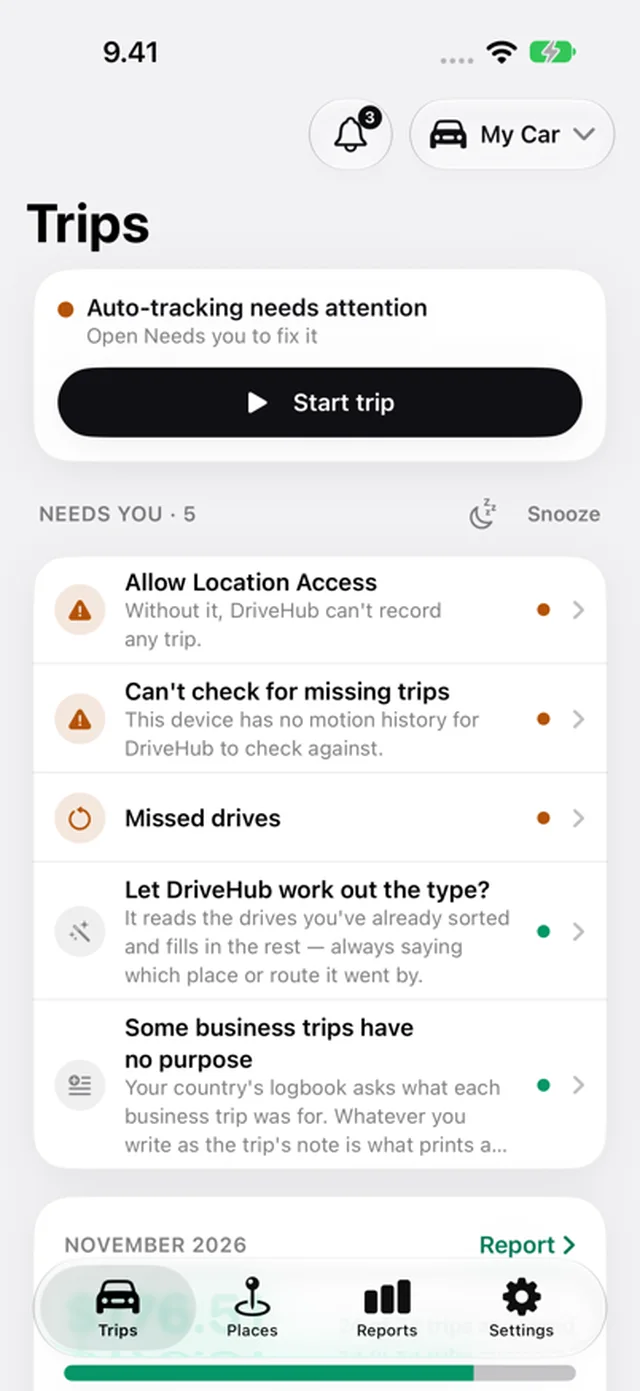
Everything else that needs your attention is one list with a count, Needs you: things to fix, drives that may be missing, filing reminders and What's new. Each row opens the page that explains it and carries its button.
Needs you normally follows To check. When one of its items is losing trips right now, the whole list moves above To check, so the fix is the first thing on the tab.
Snooze hides, for three days, everything in the list that is not losing trips right now. An item that is losing trips cannot be snoozed.
When no trip waits, nothing needs fixing and no drive is being recorded, the tab says All caught up instead.
- Open Trips and find Needs you, under To check or above it.
- Tap a row to open it and follow its button.
- Tap Snooze to put off the rows that can wait.
04 / 04
Check what the logbook still needs on a trip
Open a trip and pull its card up. For the logbook shows a count such as “2 of 4” and, while something is open, how many details are missing.
The count covers Route, Vehicle and each field your logbook requires for this trip, such as the purpose or the person visited. Route is ticked when both addresses were found. Vehicle is ticked when the car is confirmed. A trip you have not answered yet is counted as the business trip it may become.
Optional rows are not counted. Passengers, where no names are required, is a row that opens on a tap and can stay empty.
- Open the trip from To check or from the Log.
- Pull the card up to For the logbook.
- Fill in the rows that are not ticked, then check the count again.