DriveHub
SUPPORT / TRIPS
Your trips, from start to finish
Follow the real iPhone screens to record a drive, check its details, recover a missed drive and keep your log complete.
← All support answers01 / 07
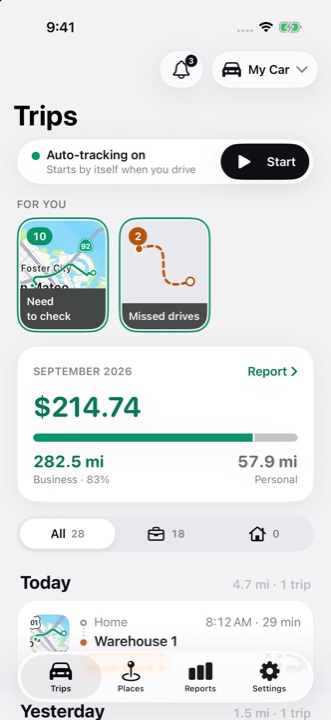
Find everything on the Trips tab
The top strip shows whether automatic tracking is standing by. Start begins a trip yourself. The bell opens trip notifications, and the car chip lets you choose the vehicle for a manual start.
For you holds items that need attention, including trips to check and possible missed drives. Below it, the current month shows business and personal distance. Tap Report to open Reports. All, Business and Personal filter the history below; trips are grouped by day.
02 / 07
Record a drive
With automatic tracking enabled and the required permissions granted, DriveHub starts recording when it detects a drive. You can also tap Start on the Trips tab before setting off.
If tracking says it needs attention, open the For you item and follow its permission or detection instructions. Working hours affect how a trip is filed, not whether it is recorded.
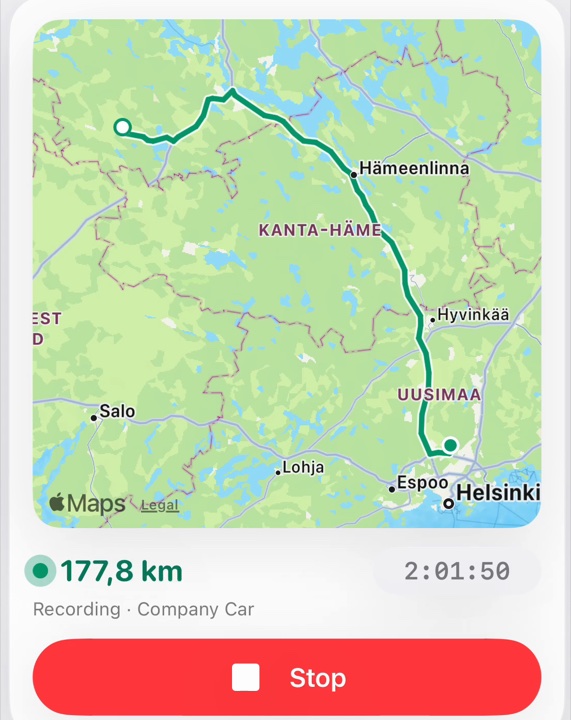
- On the Trips tab, find the card for the trip being recorded.
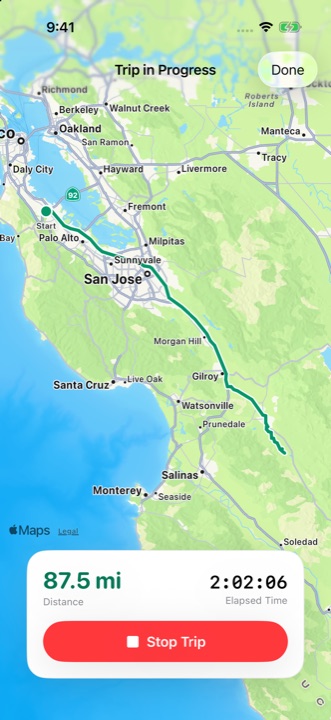
- Tap the map at the top of that card, above the distance, timer and red Stop button. The route opens full screen.
- Tap Done in the top right to return to Trips. Recording continues.
03 / 07
Check business or personal
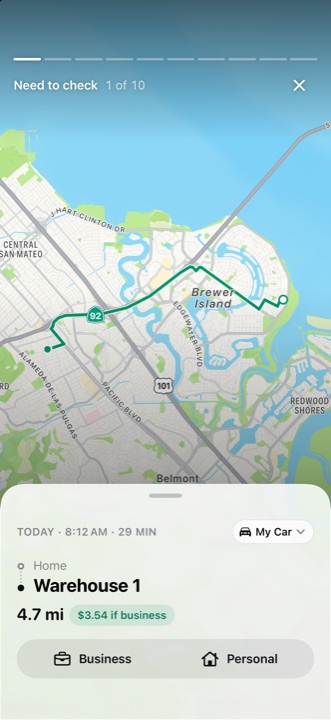
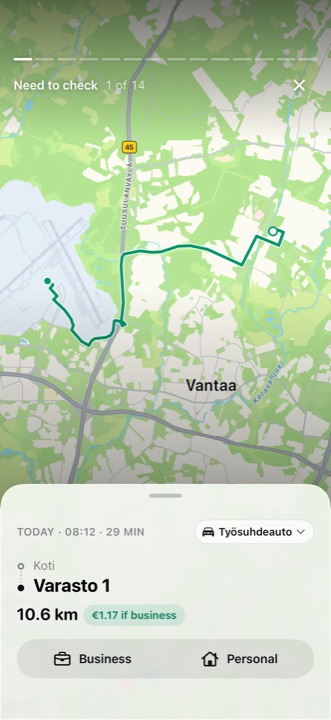
A trip that needs your decision appears under For you → Need to check. Open it and choose Business or Personal on the trip card. Continue through the remaining trips in the story.
You can also swipe a row right for Business or left for Personal in the trip list. The app may suggest a type from place rules, previous drives, working hours or your optional work calendar; check it before relying on a report.
04 / 07
Open and correct a trip
Tap any trip in the dated list to open its route and details. The panel lets you check its vehicle, type and other logbook fields, including purpose for a business trip. If a journey contains separate legs, use Split into Segments in its details.
The list's filters only change what you see; they do not delete or change trips. A trip that you classify can move out of the current filter immediately.
05 / 07
Recover a missed drive
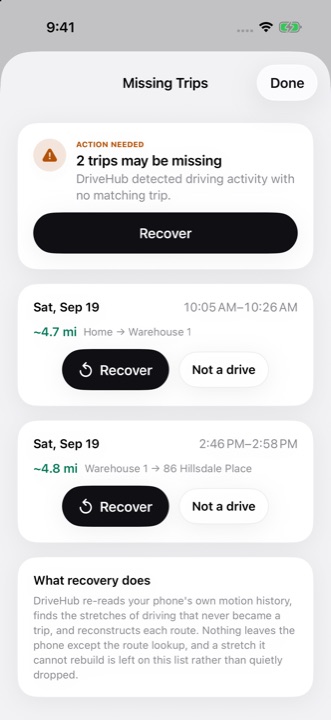
If the phone's motion history shows driving without a matching trip, For you shows Missed drives. Open it to see each possible gap. Tap Recover to rebuild a route, or Not a drive if the movement was something else. Route reconstruction needs a connection for Apple Maps.
Recovery can only use driving the phone actually logged. If the phone was off, out of battery or in Airplane Mode, add the trip yourself instead. If this keeps happening, check Settings → Tracking & detection → Tracking & permissions.
06 / 07
Add a past trip by hand
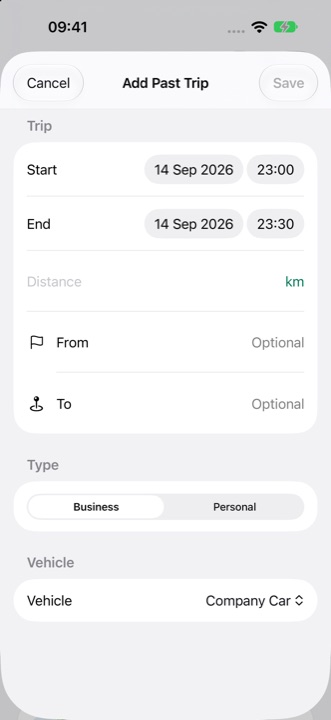
Scroll to the end of the Trips list and tap Add a past trip. Enter the start and end time and distance, choose Business or Personal, then select the vehicle. From and To are optional. Tap Save when the required values are valid.
A manually added trip appears in the history and counts in reports. Use this when no drive was recorded and there is nothing to recover.
07 / 07
Restore a trip you deleted
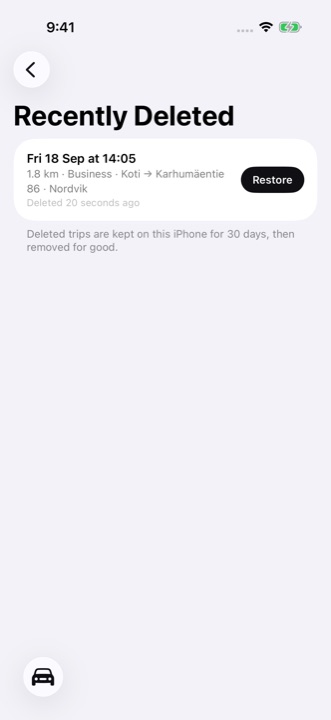
Open a trip, pull up its details and choose Delete Trip if it does not belong in the log. It leaves the monthly totals and reports. A deleted trip stays in Recently Deleted on this iPhone for 30 days.
When there are deleted trips, Recently Deleted appears at the end of the Trips list. Open it and tap Restore beside a trip to put it back.